TL;DR:
Ally in Moodle can now do four things within the Ally instructor panel: tag untagged PDFs, draft alt text for images, fix missing titles and missing language selection. The tagging PDfs and alt text for images draft require review before approving Ally to make those changes.
- PDF tagging: click Auto-Tag PDF, review the proposed tags, then Approve all, or Back to fix manually. *It’s all-or-nothing for auto-tagging. If the auto-tags look wrong, then tagging should be done in another software such as Adobe Acrobat Pro.
- Image alt text: click Auto-Generate Description, edit the draft if needed, then Add.
- Missing PDF title or language: Fix both by clicking Fix Here inside Ally. Type a title into the provided box, or select a language from the provided dropdown menu.
For a more detailed description with images, please read below.
Automatic Tagging for PDFs
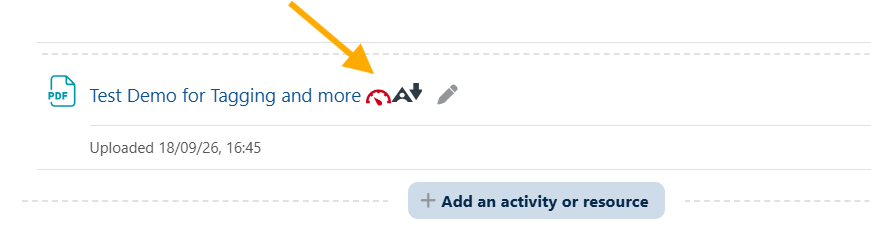
Untagged PDFs have historically required faculty to mark headings, paragraphs, and other structural elements by hand or use Adobe’s accessibility checker. A file with no tags at all typically scores very low on Ally’s accessibility scale, and the file listing in Moodle will show a red accessibility indicator next to it (Figure 1). Opening that indicator reveals the score and the option to auto-tag the document (Figure 2).
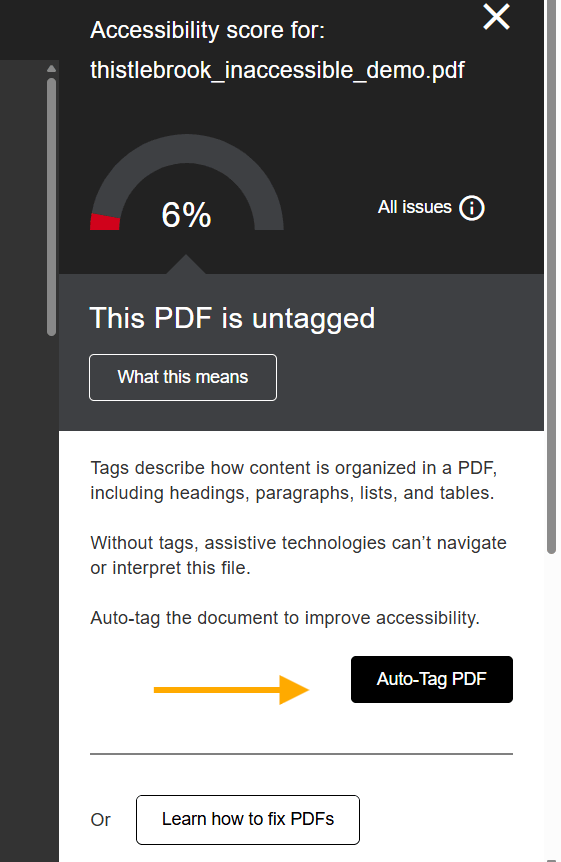
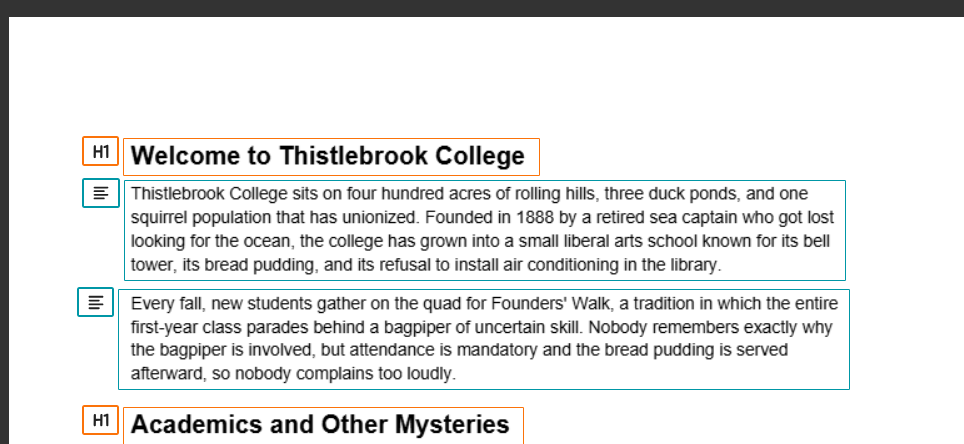
Selecting Auto-Tag PDF prompts Ally to scan the file and generate a full set of proposed tags (headings, paragraphs, lists, and so on). Before anything is applied, Ally displays these tags for review, page by page, showing the tag type alongside the corresponding text (Figure 3). A preview of the tagged content, with each element labeled, appears alongside the review panel (Figure 4).
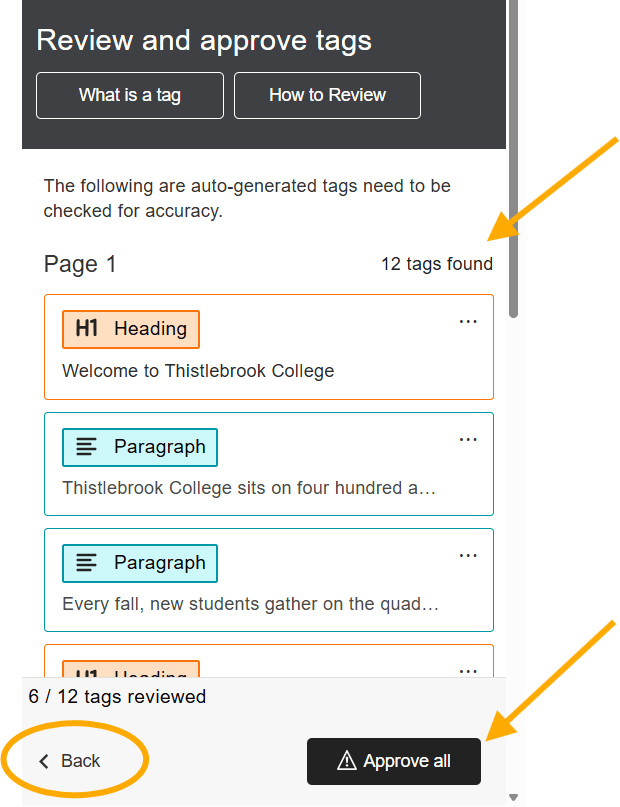
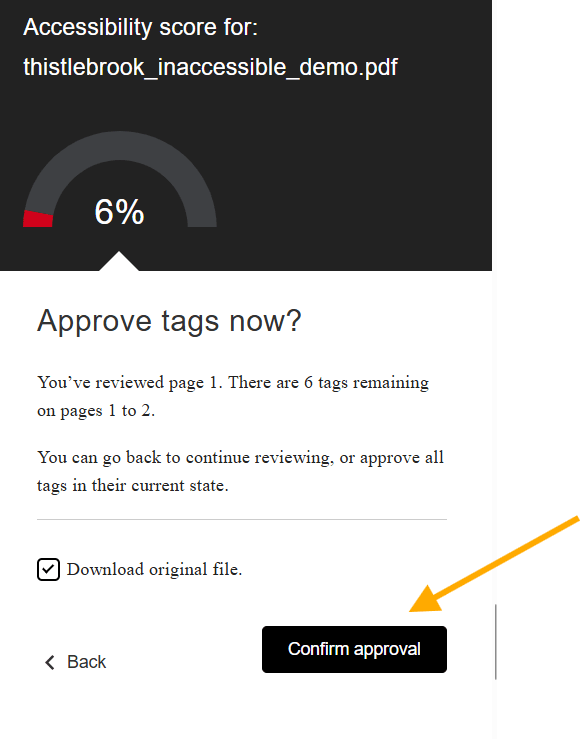
Please note the “Approve all” button in Figure 3. Approval works on an all-or-nothing basis: once you confirm, every tag on the reviewed pages is applied at once (Figure 5). If a tag looks incorrect to you, then you should click “Back” rather than approve. Clicking “Back” returns the document to manual remediation, by opening your PDF and completing your tagging process in Adobe Acrobat Pro.
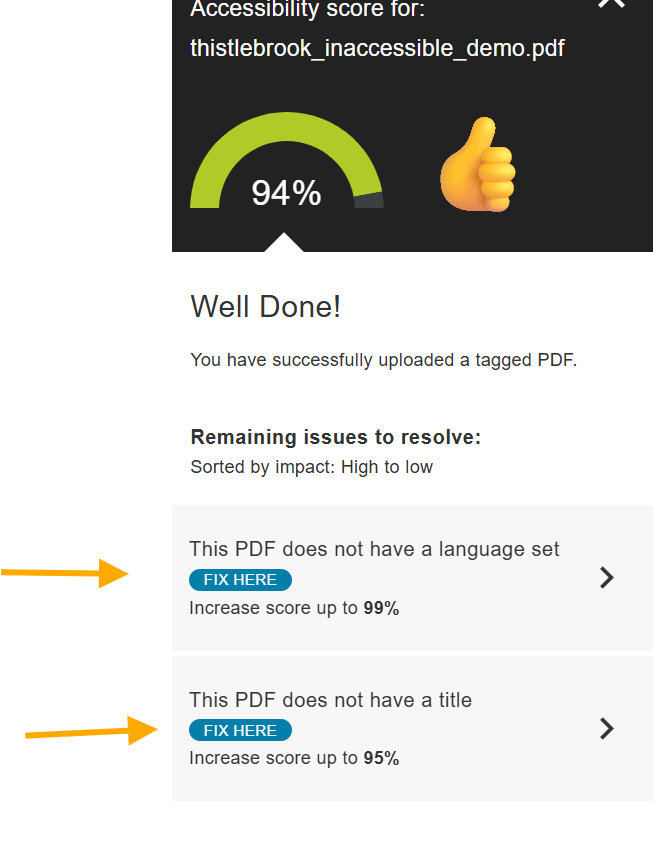
When the tags are approved, the document will be rescored by Ally. At that point, Ally will check to see if there are any additional WCAG-related issues. In our example, Ally flags two remaining issues: a missing title and a missing language setting (Figure 6).
Fixing Document Title and Language Directly in Ally
Both of these issues can now be resolved in Ally. For the title, Ally provides a text field where you can type the document’s title and select Apply Fix (Figure 7). For the language, a dropdown menu lets you select the correct language followed by the same Apply Fix step (Figure 8).
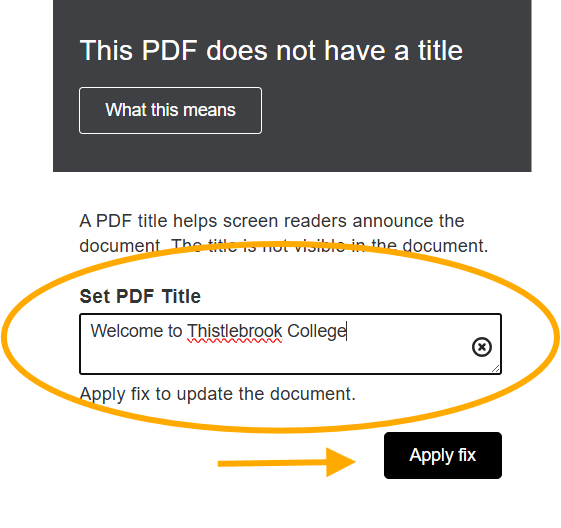
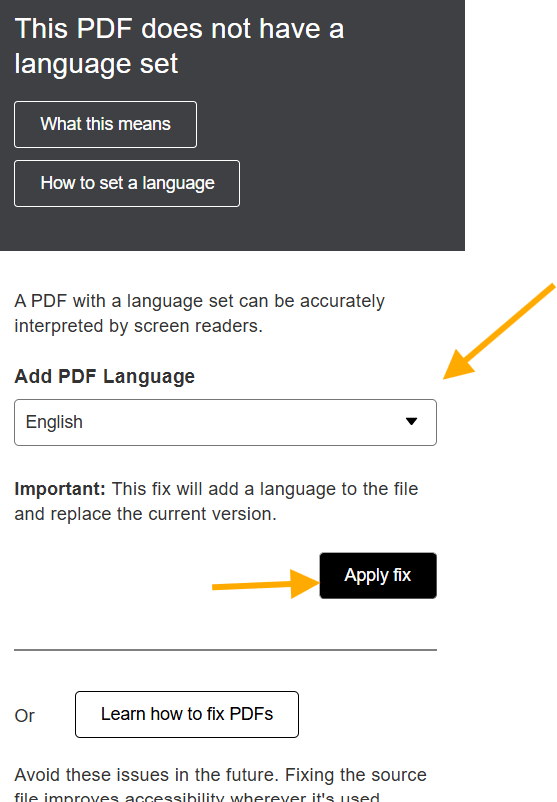
Neither the title nor the language setting is visible anywhere in the document itself. Both are metadata that screen readers depend on to announce the file correctly, which is why they are easy to miss during a visual review and why Ally flags them separately. Applying either fix saves a new version of the file automatically in Moodle.
Automatic Alt Text for Images
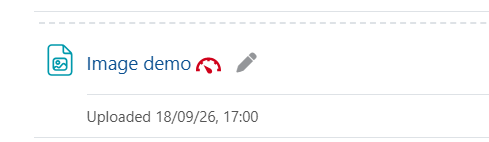
The final new feature applies to image files uploaded directly to a Moodle course page. As with PDFs, an image missing a description will show a low accessibility score and a red indicator in the file listing (Figure 9). Opening the indicator shows the missing-description warning along with a new Auto-Generate Description button (Figure 10).
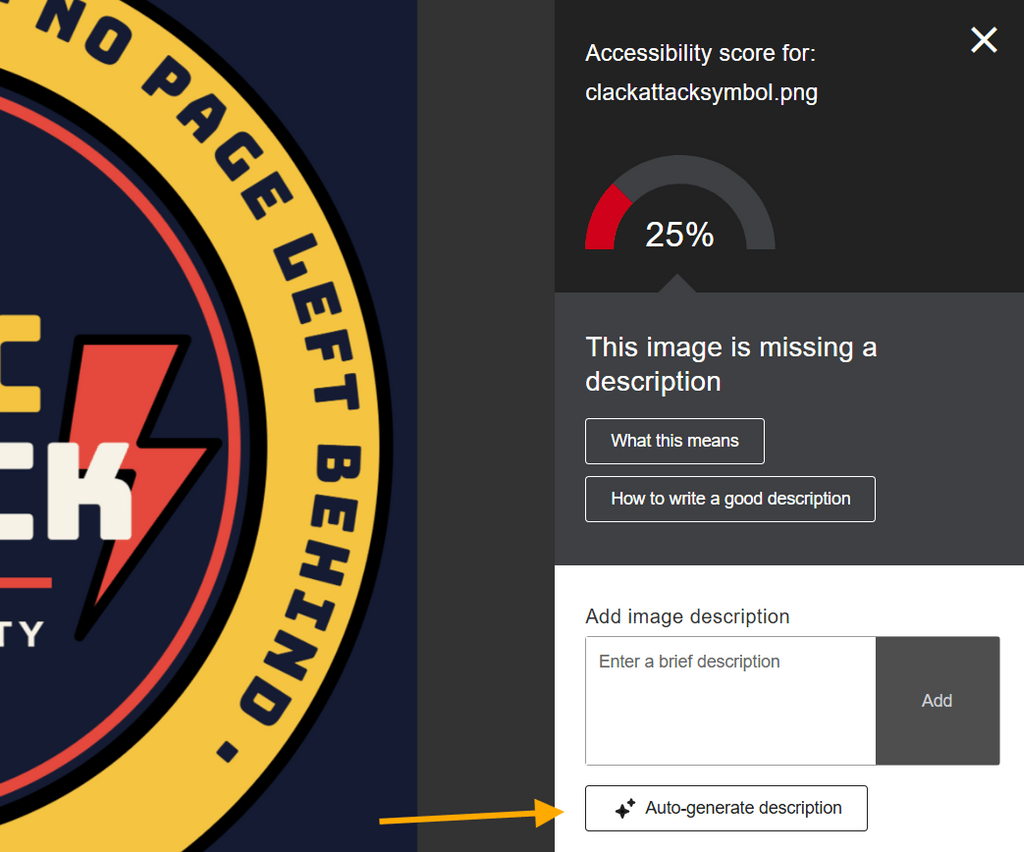
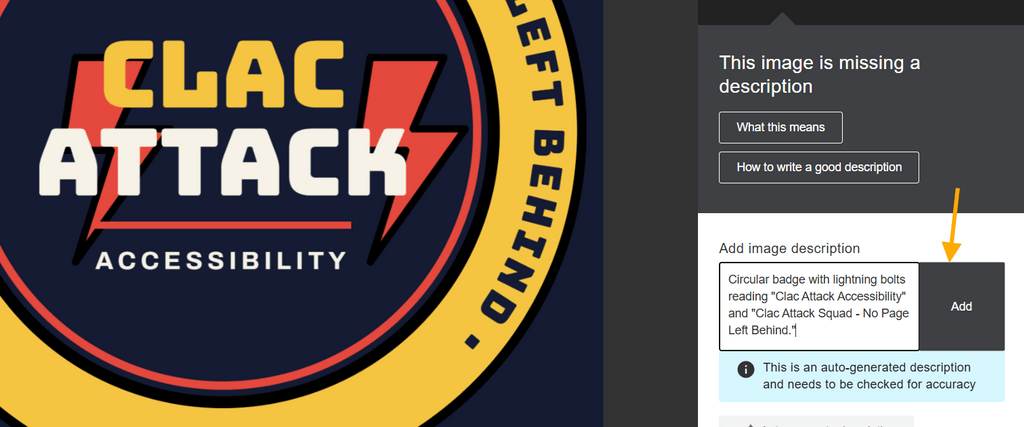
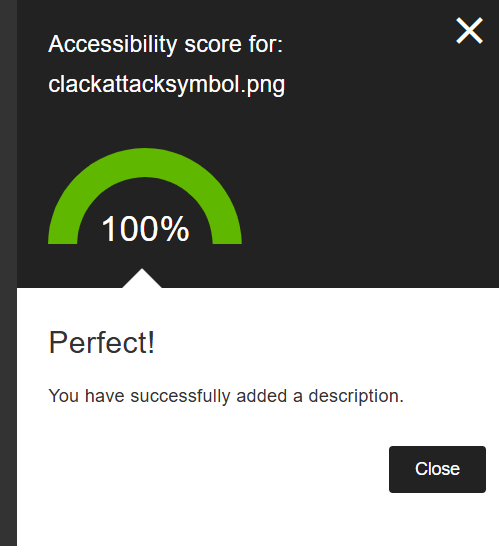
Selecting this button produces a draft description in the text field below (Figure 11). There will also be a button to indicate if the image is decorative if that is appropriate. Ally labels this text as auto-generated and notes that it should be checked for accuracy before use. Faculty should review the draft, edit it as needed, and then select Add. Once the description is added, the image’s accessibility score updates to reflect the fix (Figure 12).
A Note on Auto-Tagging and Generative AI Alt Text
Auto-tagging can still misread a document’s structure, and auto-generated alt text can miss context that only the instructor would know. Reviewing the output before approving remains the most important step in the process.
If you have questions about any of these features, or if you would like help working through a specific file, can contact us at: at@carleton.edu.